
Start with pressure, not vibes
“Slow” can mean delayed typing, beachballs, hot chassis, fans, browser lag, poor game performance, low battery life, or a stalled local AI run. Each symptom points to a different bottleneck, so the fastest path is to inspect pressure signals instead of guessing.
The seven-signal checklist
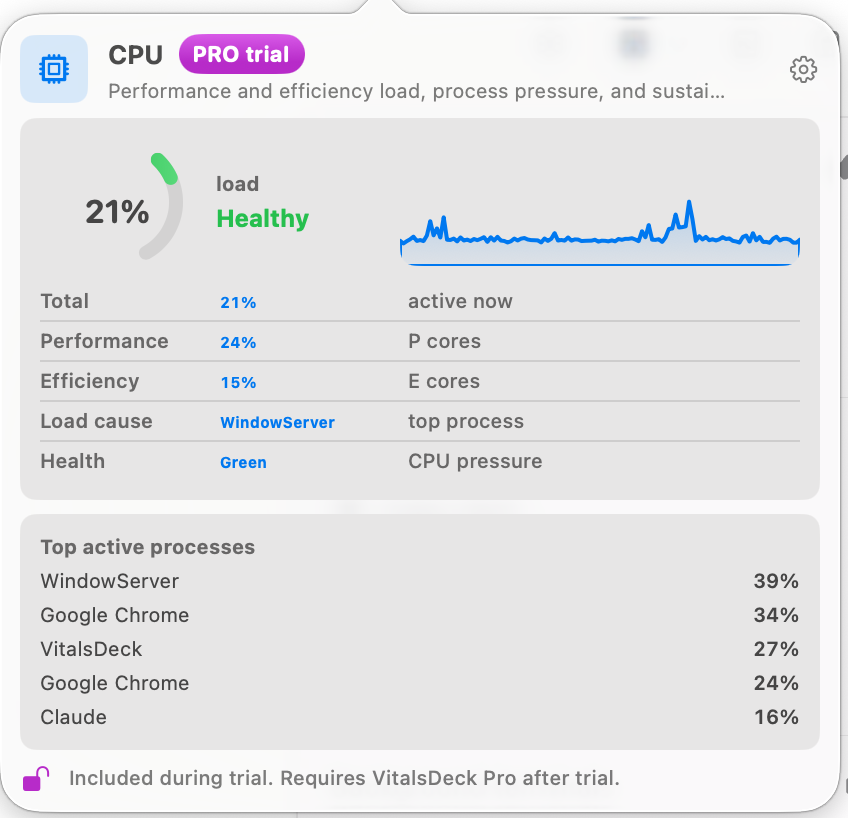
- CPU: Is one app or helper process sustaining high load?
- Memory: Is active memory high, compression rising, or swap being used?
- Disk: Is the main volume low on free space or writing heavily?
- Network: Is a sync, backup, VPN, or upload saturating the connection?
- Thermals: Is macOS reporting thermal pressure during sustained work?
- Battery: Is power draw unusually high for the current task?
- Apps: Which process or app family is most responsible?
Browser feels slow
Check CPU and memory first. Browser helper processes can drive both at once.
Mac feels hot
Look at sustained CPU/GPU activity, local AI runs, and thermal state.
Apps beachball
Inspect memory pressure, swap, disk free space, and app-level load.
How VitalsDeck helps
VitalsDeck puts the quick readout in the menu bar and the deeper explanation one click away. Instead of opening multiple utilities and mentally combining signals, you can inspect health, bottlenecks, pressure, and top processes in one place.